
Adjusting LED Brightness Using a Potentiometer
LED , Potentiometer
Components Required:
Hardware:
-
STM32 Nucleo-F070RB development board
-
A potentiometer (10kΩ is the usual one, any basic linear-taper pot works)
-
An LED (any size/colour) plus a 220Ω resistor to protect it
-
Breadboard and jumper wires
-
Micro-USB cable
Software
-
STM32CubeMX (standalone)
-
STM32CubeIDE
-
ST-LINK USB driver
Connection Details
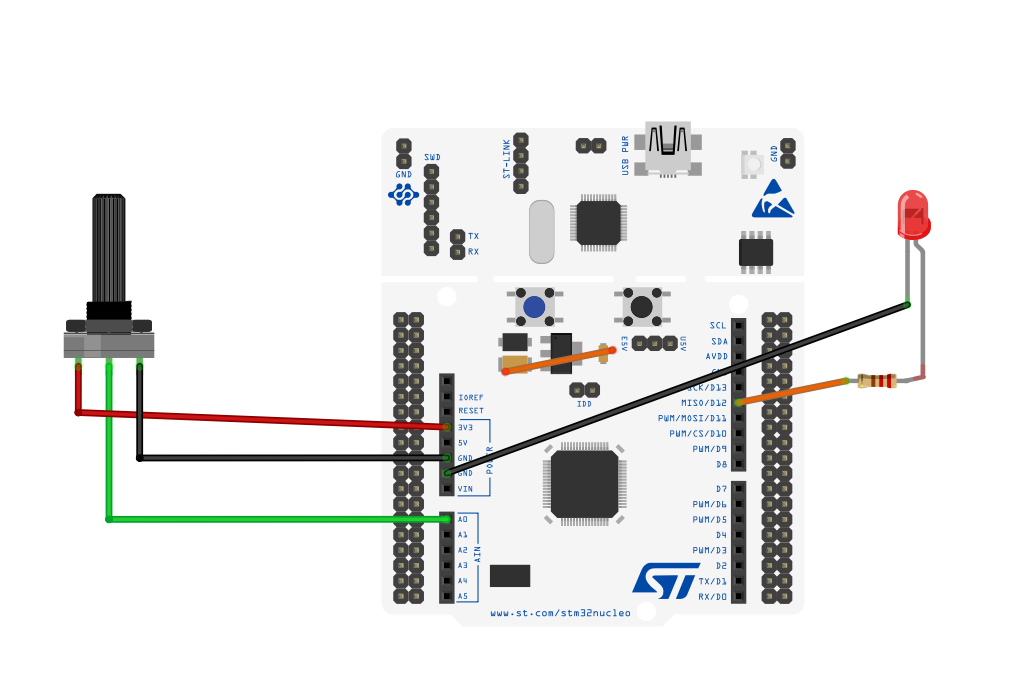
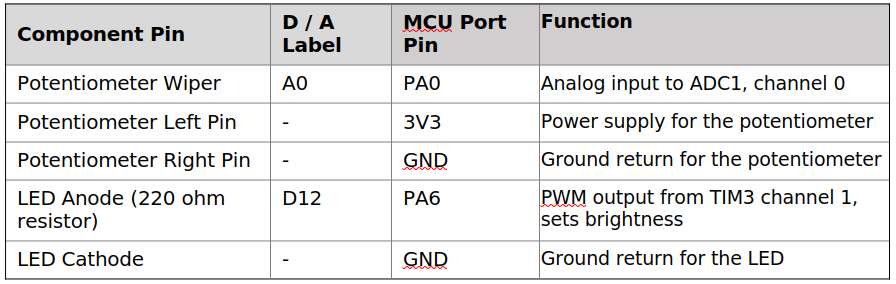
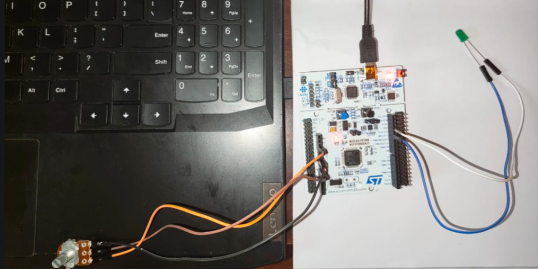
Here's the idea: the pot's two outer legs sit across the 3.3V supply, so its middle leg (the wiper) puts out somewhere between 0V and 3.3V depending on where the knob is pointing, that goes straight to the ADC pin. The LED's anode goes through its resistor to the PWM pin, and the cathode just goes back to ground.
5. Working Principle
5.1 Analog-to-Digital Conversion (ADC)
The potentiometer is basically a voltage divider, as you turn it, the voltage arriving at PA0 slides continuously anywhere between 0V and 3.3V. The chip's ADC1 peripheral takes that voltage and turns it into a plain number between 0 and 4095 (that's 12 bits of resolution), using a method called successive approximation, where it essentially narrows down the answer bit by bit. In this experiment, we're using it in the simplest possible way: ask it to take one reading, wait until it's done, grab the result. Nothing fancy, but totally reliable.
5.2 Pulse Width Modulation (PWM)
Here's a fun limitation: a GPIO pin can only ever be fully HIGH or fully LOW, there's no in-between voltage it can output directly. So how do we dim an LED smoothly? PWM is the trick: flick the pin on and off really fast, and just change how much of each cycle it spends HIGH versus LOW, that ratio is called the duty cycle. A timer peripheral (TIM3 here) handles all this switching automatically once you've set it up, it just counts up to a set number over and over, and drives the pin HIGH until the count passes a second number you control, then LOW for the rest. Since this all happens thousands of times a second, your eye and the LED itself just blend it into what looks like a steady brightness.
5.3 Linking ADC to PWM
The actual code is refreshingly simple: every loop, take the ADC's 0–4095 reading and divide it by 4, which squeezes it down into the 0–999 range that matches how we've configured the timer. Feed that number straight into TIM3's compare register with __HAL_TIM_SET_COMPARE, and the brightness updates immediately, the timer just keeps generating the waveform on its own in the background from then on, no further attention needed until you update the value again.
6. Sensor Introduction
|
Parameter |
Specification |
|
Type |
Rotary linear potentiometer (typical hobby type) |
|
Resistance Value |
10 kΩ (common values: 1 kΩ – 100 kΩ) |
|
Taper |
Linear (resistance changes proportionally with rotation angle) |
|
Power Rating |
0.15 W – 0.5 W (typical small potentiometer) |
|
Rotation Angle |
270° mechanical travel (typical) |
|
Tolerance |
±20% (typical for low-cost carbon-track potentiometers) |
|
Number of Terminals |
3 (two ends of resistive track + wiper) |
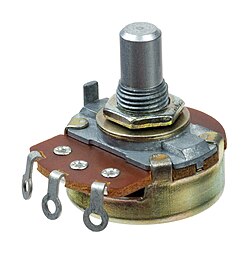
A potentiometer is one of the friendliest, most "honest" components in electronics, and it's a great one to really understand deeply because the same idea reappears everywhere, the joystick module later in this manual is literally just two potentiometers glued together at 90°. Physically, it's a fixed resistive track (a strip of carbon or resistive material) with a sliding contact called the wiper that touches the track at some point along its length, and can be moved by turning a knob.
Here's the physics: the potentiometer has three terminals, two fixed ends of the resistive track, and the wiper in the middle. If you connect one end to +3.3V and the other end to GND, the wiper's voltage is simply a fraction of that supply, exactly proportional to how far along the track the wiper currently sits. This is the voltage divider equation you'll see again and again in this manual: V_wiper = VCC × (R_below_wiper / R_total). Turn the knob fully one way, and the wiper sits right at the grounded end, giving 0V. Turn it fully the other way, and it sits at the 3.3V end, giving the full supply voltage. Anywhere in between gives a proportional voltage, this is pure Ohm's Law and voltage-divider math, nothing more exotic than that.
Your STM32's ADC (Analog-to-Digital Converter) reads this continuously varying wiper voltage and turns it into a 12-bit digital number (0 to 4095), which your code can then scale down to a PWM duty cycle (0–100%) to control how bright the LED glows. It's a beautifully direct chain: mechanical rotation → resistance change → voltage change → digital number → brightness.
In this experiment, the potentiometer's wiper is read by one of the ADC pins, and its 0–4095 reading is mapped directly onto the PWM compare register controlling the LED's duty cycle, turn the knob, and the LED visibly dims or brightens in real time. This is your first hands-on encounter with the ADC-to-PWM pipeline that reappears constantly in this manual: the exact same principle (read a variable voltage, convert to a control signal) is what makes the LDR-controlled lamp, the thermistor thermometer, and the joystick-controlled applications all work.
7. STM32CubeMX Configuration
-
Home → New Project → ACCESS TO BOARD SELECTOR.
-
Search NUCLEO-F070RB → select it → Start Project → click Yes to the default-init popup.
-
On the Pinout & Configuration tab, click pin PA0 on the chip diagram → set its mode to ADC1_IN0.
-
Click pin PA6 → set its mode to TIM3_CH1.
-
Expand Analog → ADC1 in the left tree, the defaults (12-bit, single conversion, software trigger) are exactly what we want, so leave them as-is.
-
Expand Timers → TIM3. Set Clock Source = Internal Clock, Channel 1 = PWM Generation CH1, Prescaler (PSC) = 7, Counter Period (ARR) = 999.
-
Right-click PA0 → Enter User Label → type POT_IN. Right-click PA6 → Enter User Label → type LED_PWM.
-
Go to the Project Manager tab. Set Project Name = Exp03_ADC_PWM, pick a folder, set Toolchain/IDE = STM32CubeIDE.
-
Click GENERATE CODE.

8. STM32CubeIDE Configuration
-
Open STM32CubeIDE → File → Open Projects from File System → select the Exp03_ADC_PWM folder → Finish.
-
Expand Core → Src and double-click main.c.
-
Find /* USER CODE BEGIN 2 */ (right before the while(1) loop) → add the PWM-start line from Section 9.
-
Find the while (1) loop → add the ADC-read-and-PWM-update logic from Section 9, between /* USER CODE BEGIN 3 */ and /* USER CODE END 3 */.
-
Save with Ctrl+S.
-
Build: hammer icon or Ctrl+B → confirm 0 errors.
-
Connect the board via USB.
-
Click Run → Run As → STM32 C/C++ Application (plain Run, not Debug, so there is no pause-and-resume step to get stuck on).
9. Application Code
<pre class="eit-code">#include <stdio.h>
int main()
{
printf("Hello EITEdge\n");
while(1)
{
// Your code
}
return 0;
}</pre>
10. How the Code works:
Before the main loop begins, we start the PWM signal on the timer:
im3, TIM_CHANNEL_1);
This tells Timer 3, Channel 1 to start generating a PWM (Pulse Width Modulation) signal on its output pin. Think of PWM as rapidly switching a pin ON and OFF — the "duty cycle" is what percentage of each cycle it stays ON, and that percentage is what determines brightness (for an LED), speed (for a motor), or similar analog-like control. This line only needs to run once, which is why it's placed before the while(1) loop rather than inside it.
Inside the main loop, two variables are declared: adc_val, which stores the raw value read from the ADC, and duty, which stores the PWM duty cycle we calculate from it.
The ADC reading process happens in three steps:
HAL_ADC_Start(&hadc);
HAL_ADC_PollForConversion(&hadc, HAL_MAX_DELAY);
adc_val = HAL_ADC_GetValue(&hadc);
HAL_ADC_Start tells the ADC peripheral to begin sampling the analog voltage on its input pin (for example, from a potentiometer). Because the ADC doesn't return a value instantly — it needs a small amount of time to actually measure and convert the analog voltage into a digital number — the next line, HAL_ADC_PollForConversion, makes the program wait until that conversion is finished. HAL_MAX_DELAY here means "wait as long as it takes, no timeout." Once the conversion is complete, HAL_ADC_GetValue retrieves that final digital result and stores it in adc_val.
On this microcontroller, the ADC is 12-bit, meaning adc_val can range anywhere from 0 to 4095 depending on the voltage detected at the input pin.
Next comes the conversion from ADC reading to PWM duty cycle:
duty = adc_val / 4;
Since adc_val ranges from 0–4095 (12-bit ADC) but the PWM timer in this setup is configured for a 0–1023 range (10-bit), we need to scale the number down so it fits. Dividing by 4 does exactly that, because 4095 ÷ 4 ≈ 1023 — this maps the full ADC range onto the full PWM range proportionally.
That scaled value is then applied to the timer with:
__HAL_TIM_SET_COMPARE(&htim3, TIM_CHANNEL_1, duty);
This line actually updates the PWM output in real time — it changes how long the signal stays HIGH within each cycle, based on the duty value we just calculated. So as the ADC input voltage changes (say, as you turn a potentiometer), this value updates accordingly, directly changing the PWM output.
Finally:
HAL_Delay(20);
This pauses for 20 milliseconds before the loop repeats, giving a small, steady refresh rate — fast enough to feel responsive, but not so fast that it overloads the processor with constant ADC reads.
So, following the flow: read the analog voltage from the ADC → scale that raw reading down to match the PWM's range → apply it as the new duty cycle on the timer → wait 20 ms → repeat. The practical result is something like a potentiometer smoothly controlling an LED's brightness or a motor's speed in real time.
11. Hardware Image
12. Output
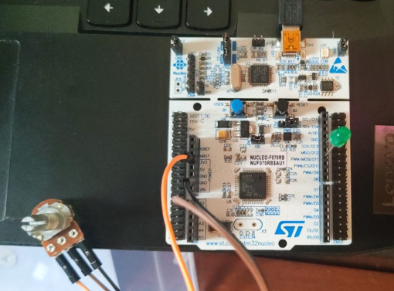
Turn the knob and watch the LED respond immediately, all the way one direction gives you a reading near 0 and the LED goes dark; all the way the other way gives you close to 4095 and it's at full brightness; anywhere in between gives you a proportional glow, with no flicker or visible stepping at all.
You will know it is working correctly if the LED brightness tracks the knob smoothly across its whole range of travel, with no dead zones and no sudden jumps.
Experiment Resources
Download the source code, schematics, and required assets to build this project.
Community Q&A
3 questionsAsk questions and get answers from our community and staff moderators.
Can you add LDR project?
Can you post ardiuno project with potentiometer?
How this is works?
By roating nob..
By adjusting nob
Ask a Question
Please log in to ask a question or post a reply.
Login to Participate