
Introduction
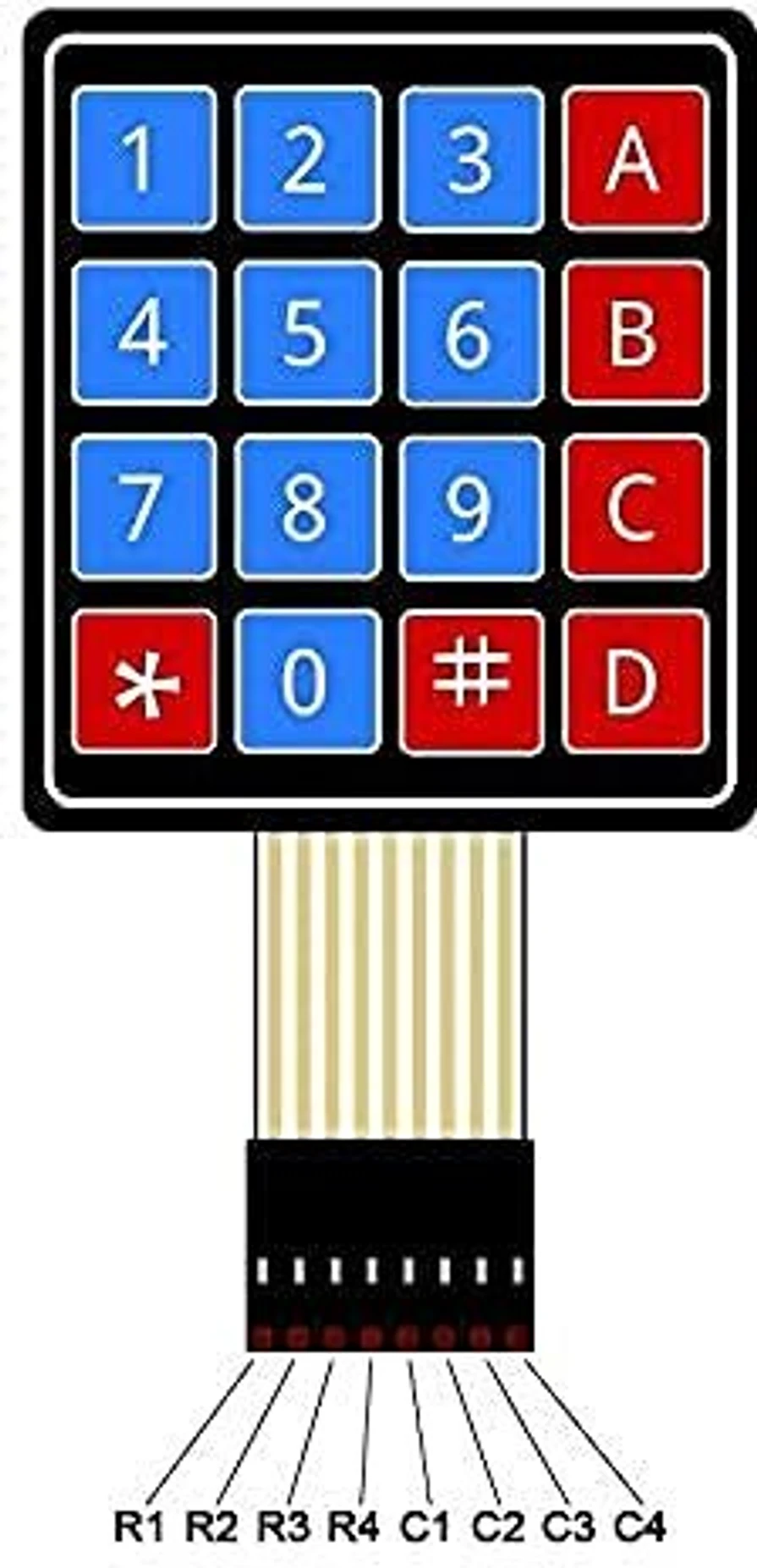
Ever wondered how a keypad manages to squeeze 16 buttons onto just 8 wires? That's exactly what we're figuring out in this experiment. We'll wire up a 4×4 matrix keypad to the STM32 and get it printing which key you pressed straight to PuTTY. This trick, called row-column scanning, is the same one used behind the scenes in car window switches, HVAC panels, basically anywhere you see a grid of buttons packed close together.
2. Scope
We'll figure out why a matrix layout even makes sense in the first place, set up four GPIO pins as outputs (the rows) and four as inputs with pull-ups (the columns), write the scanning loop that catches whichever row-column pair is currently touching, map that back to an actual key character, and add a touch of debounce so one press doesn't get counted five times. Along the way you'll pick up GPIO input/output configuration, pull-up resistors, and the general idea of “scanning” hardware, a pattern you'll bump into again with LED matrices and rotary encoders.
3. Prerequisite
3.1 Hardware
-
STM32 Nucleo-F070RB development board
-
A 4×4 matrix keypad module (16 keys, 8 pins on a ribbon or header)
-
Breadboard and jumper wires
-
Micro-USB cable
-
PC with PuTTY
3.2 Software
-
STM32CubeMX (standalone)
-
STM32CubeIDE
-
ST-LINK USB driver
-
PuTTY, or an equivalent serial terminal app
4. Connection Details
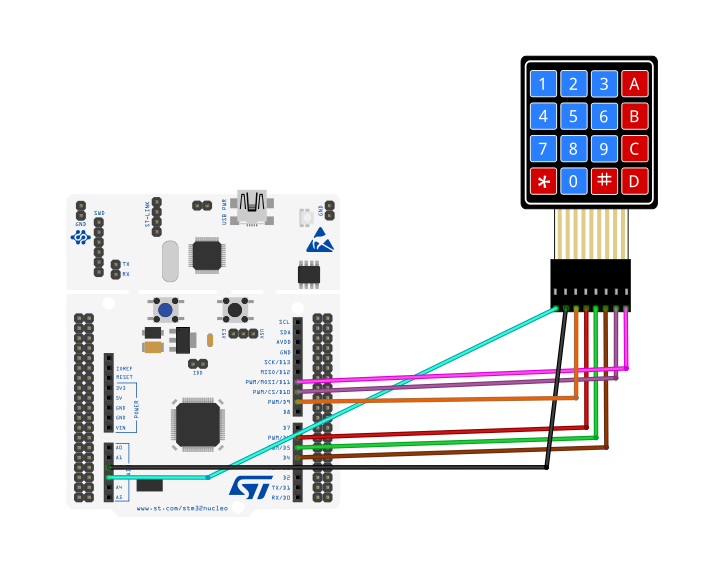
|
Keypad Pin |
D / A Label |
MCU Port Pin |
Function |
|
Row 1 |
A3 |
PB0 |
GPIO output, scanning line for row 1 |
|
Row 2 |
- |
PB1 |
GPIO output, scanning line for row 2 |
|
Row 3 |
- |
PB2 |
GPIO output, scanning line for row 3 |
|
Row 4 |
D6 |
PB10 |
GPIO output, scanning line for row 4 |
|
Column 1 |
D5 |
PB4 |
GPIO input with internal pull-up, column 1 sense line |
|
Column 2 |
D4 |
PB5 |
GPIO input with internal pull-up, column 2 sense line |
|
Column 3 |
D10 |
PB6 |
GPIO input with internal pull-up, column 3 sense line |
|
Column 4 |
- |
PB7 |
GPIO input with internal pull-up, column 4 sense line |
Most 4×4 keypads lay their 8 pins out as “all four rows, then all four columns”, but double-check yours against its own markings or datasheet, since manufacturers don't all agree on the order. You won't need any external resistors here either; the internal pull-ups we set up in software hold each column line HIGH until a key press drags it LOW.
5. Working Principle
5.1 Why a Matrix Instead of Direct Wiring
Sure, you could wire all 16 keys straight to 16 separate GPIO pins, but that's a lot of pins and a lot of wires for not much gain. A matrix keypad is smarter about it: each key sits at the crossing point of one row wire and one column wire, so pressing it just connects that one row to that one column. With 4 rows and 4 columns, you cover all 16 keys using only 8 wires total instead of 16, and this trick scales even better on bigger keypads.
5.2 The Scanning Algorithm
Because 16 keys are sharing just 8 wires, the microcontroller can't simply “look” and instantly know which key is down, it has to actively check, over and over, in a loop:
-
Drive all four row lines HIGH.
-
Pull one row LOW at a time, starting with Row 1.
-
While that row is LOW, check all four columns. If a key in that row happens to be pressed, the LOW from the active row sneaks through the closed switch onto that column too.
-
So if any column reads LOW while a given row is active, you've found your key, look it up in a keymap table using that row and column.
-
Put that row back to HIGH, move on to the next row, and repeat.
This whole 4-row sweep finishes in well under a millisecond, so to you it just feels instant, even though the chip really is checking each row one at a time behind the scenes.
5.3 Pull-Up Resistors and Floating Inputs
A digital input pin with nothing connected to it is what's called “floating”, its reading is basically random noise, not something you can trust. Turning on the STM32's internal pull-up resistor fixes that: it gently pulls the pin toward 3.3V whenever nothing else is actively driving it, so an unpressed key reliably reads HIGH, and a pressed one reliably reads LOW.
5.4 Debounce
Here's something people don't expect the first time: mechanical switches don't snap cleanly from open to closed, the metal contacts physically bounce for a few milliseconds first. Without handling this, one real press could register as several. The fix here is about as simple as it gets: a short HAL_Delay(200) after we detect a press, just long enough for that bouncing to settle down before we check that spot again.
6. Sensor Introduction
|
Parameter |
Specification |
|
Type |
4x4 Matrix Membrane Keypad (16 keys) |
|
Switch Type |
Momentary, normally-open, resistive membrane contact |
|
Operating Voltage |
Logic-level compatible (works fine at 3.3V or 5V) |
|
Interface |
8 GPIO pins (4 rows + 4 columns, no dedicated IC) |
|
Actuation Force |
Low (soft tactile press, membrane-based) |
|
Life Expectancy |
Typically >1,000,000 actuations |
|
Dimensions |
Approx. 77mm x 69mm (standard 4x4 membrane keypad) |
A matrix keypad is a clever bit of engineering economy, with only 8 wires, it lets you detect which one of 16 different keys was pressed, instead of needing 16 separate wires (one per key). The trick is arranging the 16 keys in a 4x4 grid where each key physically sits at the intersection of one row wire and one column wire, and pressing a key simply creates an electrical short between its row and its column, nothing more.
The scanning logic (the actual 'how it works' part) goes like this: your microcontroller drives one row LOW at a time (while the other three rows stay HIGH), then reads all four column pins. If a key in that active row is being pressed, its column pin will read LOW too (because the pressed key just connected that row to that column). If no key in that row is pressed, all four columns read HIGH (held there by internal pull-up resistors). The code then moves to the next row, repeats, and so on, cycling through all 4 rows many times per second. Because this happens so fast (thousands of times a second), it feels instantaneous to a human pressing a key, even though the microcontroller is really doing this scan in a fast round-robin loop.
Mathematically, this reduces the wiring problem from O(n²), one wire per key, down to O(2√n), which is exactly why a 16-key pad only needs 8 wires: 4 rows + 4 columns = 8, and 4×4=16 possible row-column combinations. This same time-division scanning principle is exactly what you'll see again in the 7-segment and LED matrix experiments later in this manual, where instead of scanning for a keypress, you're scanning to light up one row of LEDs at a time.
For this experiment, your code repeatedly scans through the 4 rows, checking which column (if any) reads LOW in each cycle, and uses that row+column combination to look up which specific key (0–9, A, D, *, #) was pressed, before printing that value to the UART console. This is a foundational digital-logic skill: once you understand row/column scanning here, the exact same mental model directly explains how the pixel matrix and multiplexed 7-segment display experiments work later in this guide, they're all just different flavors of "scan one line at a time, fast enough that it looks instantaneous."
7. STM32CubeMX Configuration
-
Home → New Project → ACCESS TO BOARD SELECTOR.
-
Search NUCLEO-F070RB → select it → Start Project → click Yes to default init.
-
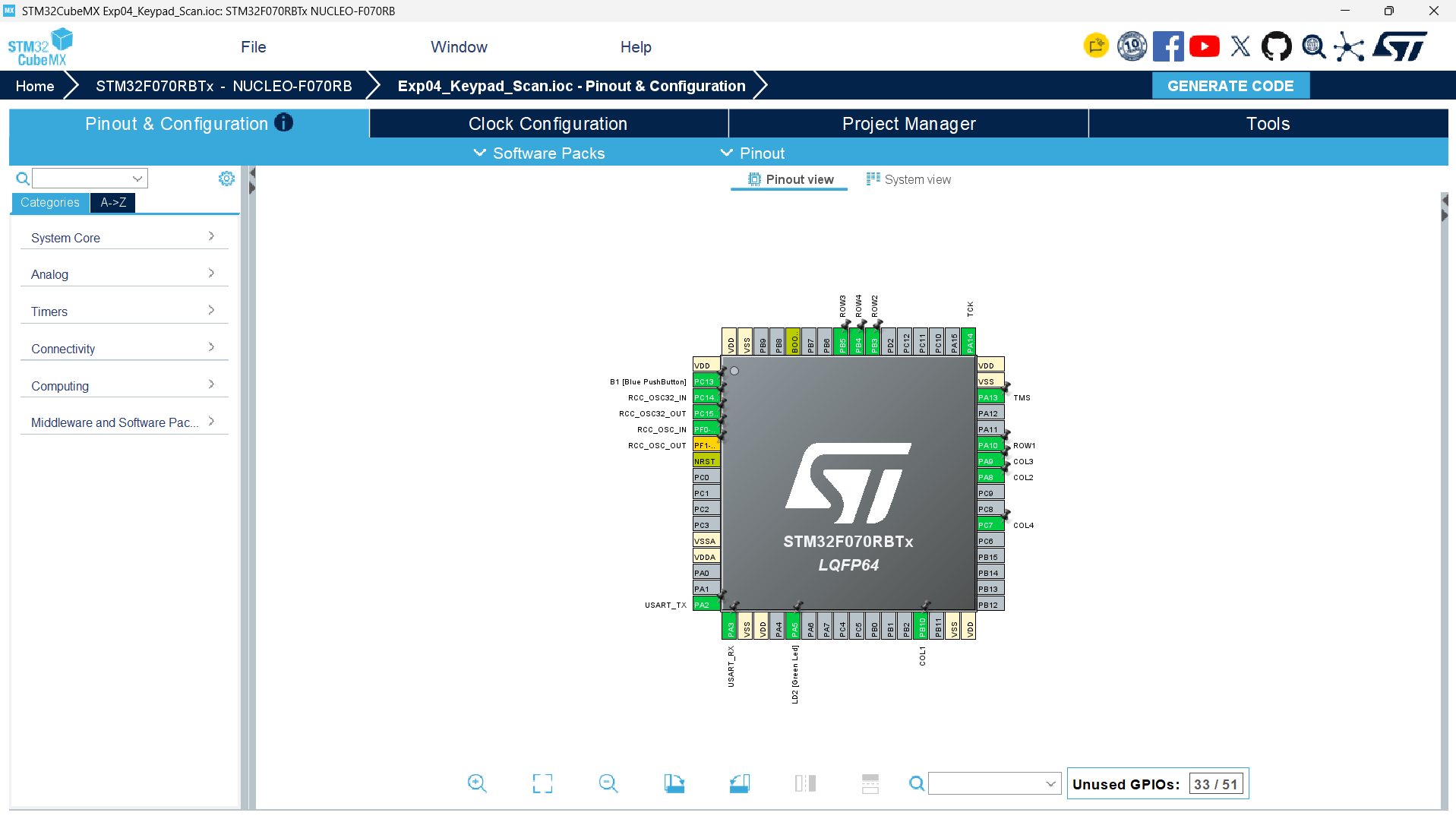
On the Pinout & Configuration tab, click each of these pins and set as GPIO_Output: PB0, PB1, PB2, PB10.
-
Click each of these and set as GPIO_Input: PB4, PB5, PB6, PB7.
-
For each of those four input pins, open System Core → GPIO in the left tree and set GPIO Pull-up/Pull-down = Pull-up individually for PB4, PB5, PB6, PB7.
-
Double-check USART2 is still Asynchronous, 115200-8-N-1 (it was auto-set back in step 2).
-
Rename pins via User Label: PB0→ROW1, PB1→ROW2, PB2→ROW3, PB10→ROW4, PB4→COL1, PB5→COL2, PB6→COL3, PB7→COL4.
-
Go to the Project Manager tab. Set Project Name = Exp04_Keypad_Scan, pick a folder, set Toolchain/IDE = STM32CubeIDE.
-
Click GENERATE CODE.
8. STM32CubeIDE Configuration
-
Open STM32CubeIDE → File → Open Projects from File System → select the Exp04_Keypad_Scan folder → Finish.
-
Expand Core → Src and double-click main.c.
-
Under /* USER CODE BEGIN Includes */, add #include "string.h" and #include "stdio.h" (needed for sprintf/strlen).
-
Under /* USER CODE BEGIN 0 */ (above main()), paste the keymap table and pin-array declarations from Section 9.
-
Inside the while (1) loop, paste the scanning loop from Section 9 between /* USER CODE BEGIN 3 */ and /* USER CODE END 3 */.
-
Save with Ctrl+S.
-
Build: hammer icon or Ctrl+B → confirm 0 errors.
-
Connect the board via USB.
-
Click Run → Run As → STM32 C/C++ Application (plain Run, not Debug, so there is no pause-and-resume step to get stuck on).
9. Application Code
/* USER CODE BEGIN Includes */
#include "string.h" // gives access to strlen(), used to find how many characters are in msg
#include "stdio.h" // gives access to functions like sprintf(), used to format text/numbers into strings
/* USER CODE END Includes */
/* USER CODE BEGIN 0 */
const char keymap[4][4] = { // 4x4 grid mapping each row/column intersection to the actual character printed on that key
{'1','2','3','A'}, // row 0 keys
{'4','5','6','B'}, // row 1 keys
{'7','8','9','C'}, // row 2 keys
{'*','0','#','D'} // row 3 keys
};
GPIO_TypeDef* rowPort[4] = {ROW1_GPIO_Port, ROW2_GPIO_Port, ROW3_GPIO_Port, ROW4_GPIO_Port}; // array holding which GPIO port each row pin belongs to, so we can loop through rows in code
uint16_t rowPin[4] = {ROW1_Pin, ROW2_Pin, ROW3_Pin, ROW4_Pin}; // array holding the actual pin number for each row, matched by index to rowPort
GPIO_TypeDef* colPort[4] = {COL1_GPIO_Port, COL2_GPIO_Port, COL3_GPIO_Port, COL4_GPIO_Port}; // array holding which GPIO port each column pin belongs to, so we can loop through columns in code
uint16_t colPin[4] = {COL1_Pin, COL2_Pin, COL3_Pin, COL4_Pin}; // array holding the actual pin number for each column, matched by index to colPort
/* USER CODE END 0 */
/* USER CODE BEGIN WHILE */
while (1) // infinite loop, keeps scanning the keypad forever
{
/* USER CODE END WHILE */
/* USER CODE BEGIN 3 */
for (int r = 0; r < 4; r++) { // loop through each of the 4 rows one at a time
for (int i = 0; i < 4; i++) HAL_GPIO_WritePin(rowPort[i], rowPin[i], GPIO_PIN_SET); // set ALL rows HIGH first, so only the one row we're testing is LOW
HAL_GPIO_WritePin(rowPort[r], rowPin[r], GPIO_PIN_RESET); // pull the current row r LOW, this is the row we're actively scanning right now
for (int c = 0; c < 4; c++) { // loop through each of the 4 columns to check for a pressed key in this row
if (HAL_GPIO_ReadPin(colPort[c], colPin[c]) == GPIO_PIN_RESET) { // if this column reads LOW, it means a key was pressed (row LOW connects through to column)
char msg[32]; // buffer to hold the message we'll print showing which key was pressed
sprintf(msg, "Key Pressed: %c\r\n", keymap[r][c]); // format the message using the character from keymap at position [row][col]
HAL_UART_Transmit(&huart2, (uint8_t*)msg, strlen(msg), HAL_MAX_DELAY); // send that message out over UART so it shows in PuTTY
HAL_Delay(200); // small delay to debounce the key (avoid detecting one press as multiple presses)
}
}
}
}
/* USER CODE END 3 */
-
How the Code works
This program scans a 4x4 matrix keypad to figure out which key is being pressed, and prints the result over UART.
Before the main loop, a few things are set up. First, the keymap array:
const char keymap[4][4] = {
{'1','2','3','A'},
{'4','5','6','B'},
{'7','8','9','C'},
{'*','0','#','D'}
};
This is a 2D grid that mirrors the physical layout of the keypad. Each key on a matrix keypad sits at the intersection of a specific row and column, so keymap[row][col] gives us the actual character printed on that key. For example, keymap[0][0] is '1', and keymap[3][3] is 'D'.
Next, four arrays are set up to hold the GPIO ports and pins for the rows and columns:
GPIO_TypeDef* rowPort[4] = {ROW1_GPIO_Port, ROW2_GPIO_Port, ROW3_GPIO_Port, ROW4_GPIO_Port};
uint16_t rowPin[4] = {ROW1_Pin, ROW2_Pin, ROW3_Pin, ROW4_Pin};
GPIO_TypeDef* colPort[4] = {COL1_GPIO_Port, COL2_GPIO_Port, COL3_GPIO_Port, COL4_GPIO_Port};
uint16_t colPin[4] = {COL1_Pin, COL2_Pin, COL3_Pin, COL4_Pin};
Rather than writing separate code for ROW1, ROW2, ROW3, ROW4 individually every time we need to control them, we store them all in arrays. This means we can loop through index 0 to 3 and access any row or column pin dynamically, which keeps the scanning code short and reusable instead of repeating the same block four times over.
Now, following the flow inside the main loop, the keypad is scanned using a classic row-by-row technique:
for (int r = 0; r < 4; r++) {
for (int i = 0; i < 4; i++) HAL_GPIO_WritePin(rowPort[i], rowPin[i], GPIO_PIN_SET);
HAL_GPIO_WritePin(rowPort[r], rowPin[r], GPIO_PIN_RESET);
For each row r, the code first sets every single row pin HIGH — this resets things so no row is accidentally left LOW from the previous scan. Then, it pulls just the current row r LOW. This is the core trick behind matrix keypad scanning: by only activating (pulling LOW) one row at a time, we can tell exactly which row a key belongs to, because a keypress physically connects that row's wire to a column's wire.
Next, the inner loop checks each column for that active row:
for (int c = 0; c < 4; c++) {
if (HAL_GPIO_ReadPin(colPort[c], colPin[c]) == GPIO_PIN_RESET) {
If a key is being pressed, current flows from the LOW row, through the pressed key, into that column's pin — pulling the column pin LOW too. So, HAL_GPIO_ReadPin(colPort[c], colPin[c]) == GPIO_PIN_RESET is literally asking: "is this column pin reading LOW right now?" If it is, that tells us a key is being pressed somewhere in row r, column c.
Once a press is detected, the message is built and sent:
char msg[32];
sprintf(msg, "Key Pressed: %c\r\n", keymap[r][c]);
HAL_UART_Transmit(&huart2, (uint8_t*)msg, strlen(msg), HAL_MAX_DELAY);
HAL_Delay(200);
sprintf formats a string using keymap[r][c] — since we already know which row and column triggered the press, this directly looks up the correct character from the keymap grid. That message is then transmitted over UART2 so it appears in PuTTY. The HAL_Delay(200) afterward acts as debounce — a short pause that prevents one physical button press (which can involve tiny electrical bounces) from being registered as several rapid presses in a row.
So overall, the flow is: set all rows HIGH → pull one row LOW at a time → check all four columns for that row to see if any reads LOW → if one does, look up the corresponding key in the keymap grid and print it → move to the next row → repeat this whole process forever. This constant scanning happens fast enough that key presses feel instantly responsive, even though the microcontroller is technically checking one row at a time.
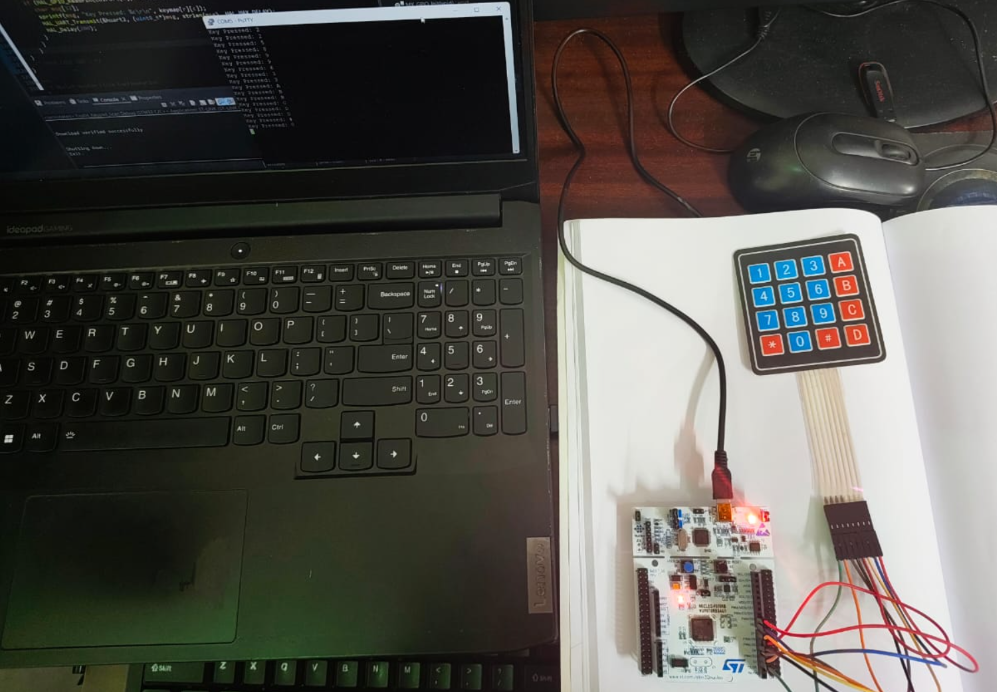
11. Hardware Image
12. Output
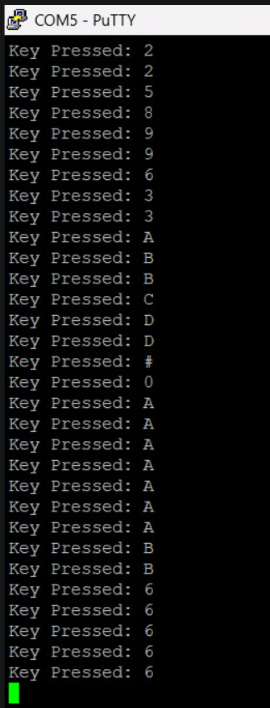
Press any key and you'll see a line like “Key Pressed: 5” pop up in PuTTY straight away, matching whatever key you actually pressed. Mash a few different keys in a row and you'll get a matching sequence of lines, one per press, no repeats, nothing missed, as long as you're pressing at a normal human pace.
You will know it is working correctly if every key you press produces exactly one matching line in PuTTY, with no missed presses and no duplicate lines.
Experiment Resources
Download the source code, schematics, and required assets to build this project.
Community Q&A
1 questionAsk questions and get answers from our community and staff moderators.
Hello. How it is working?
Ask a Question
Please log in to ask a question or post a reply.
Login to Participate